A PHP Error was encountered
Severity: Warning
Message: count(): Parameter must be an array or an object that implements Countable
Filename: libraries/StructuredData.php
Line Number: 638
Backtrace:
File: /var/www/ironpdf.com/application/libraries/StructuredData.php
File: /var/www/ironpdf.com/application/libraries/StructuredData.php
File: /var/www/ironpdf.com/application/libraries/StructuredData.php
File: /var/www/ironpdf.com/application/libraries/StructuredData.php
File: /var/www/ironpdf.com/application/libraries/StructuredData.php
File: /var/www/ironpdf.com/application/libraries/Render.php
File: /var/www/ironpdf.com/application/controllers/Products/Howto.php
File: /var/www/ironpdf.com/index.php
A PHP Error was encountered
Severity: Warning
Message: Illegal string offset 'name'
Filename: libraries/StructuredData.php
Line Number: 641
Backtrace:
File: /var/www/ironpdf.com/application/libraries/StructuredData.php
File: /var/www/ironpdf.com/application/libraries/StructuredData.php
File: /var/www/ironpdf.com/application/libraries/StructuredData.php
File: /var/www/ironpdf.com/application/libraries/StructuredData.php
File: /var/www/ironpdf.com/application/libraries/StructuredData.php
File: /var/www/ironpdf.com/application/libraries/Render.php
File: /var/www/ironpdf.com/application/controllers/Products/Howto.php
File: /var/www/ironpdf.com/index.php
A PHP Error was encountered
Severity: Warning
Message: Illegal string offset 'title'
Filename: libraries/StructuredData.php
Line Number: 643
Backtrace:
File: /var/www/ironpdf.com/application/libraries/StructuredData.php
File: /var/www/ironpdf.com/application/libraries/StructuredData.php
File: /var/www/ironpdf.com/application/libraries/StructuredData.php
File: /var/www/ironpdf.com/application/libraries/StructuredData.php
File: /var/www/ironpdf.com/application/libraries/StructuredData.php
File: /var/www/ironpdf.com/application/libraries/Render.php
File: /var/www/ironpdf.com/application/controllers/Products/Howto.php
File: /var/www/ironpdf.com/index.php
A PHP Error was encountered
Severity: Warning
Message: Illegal string offset 'comment'
Filename: libraries/StructuredData.php
Line Number: 644
Backtrace:
File: /var/www/ironpdf.com/application/libraries/StructuredData.php
File: /var/www/ironpdf.com/application/libraries/StructuredData.php
File: /var/www/ironpdf.com/application/libraries/StructuredData.php
File: /var/www/ironpdf.com/application/libraries/StructuredData.php
File: /var/www/ironpdf.com/application/libraries/StructuredData.php
File: /var/www/ironpdf.com/application/libraries/Render.php
File: /var/www/ironpdf.com/application/controllers/Products/Howto.php
File: /var/www/ironpdf.com/index.php
A PHP Error was encountered
Severity: Warning
Message: count(): Parameter must be an array or an object that implements Countable
Filename: libraries/StructuredData.php
Line Number: 638
Backtrace:
File: /var/www/ironpdf.com/application/libraries/StructuredData.php
File: /var/www/ironpdf.com/application/libraries/StructuredData.php
File: /var/www/ironpdf.com/application/libraries/StructuredData.php
File: /var/www/ironpdf.com/application/libraries/StructuredData.php
File: /var/www/ironpdf.com/application/libraries/StructuredData.php
File: /var/www/ironpdf.com/application/libraries/StructuredData.php
File: /var/www/ironpdf.com/application/libraries/Render.php
File: /var/www/ironpdf.com/application/controllers/Products/Howto.php
File: /var/www/ironpdf.com/index.php
A PHP Error was encountered
Severity: Warning
Message: Illegal string offset 'name'
Filename: libraries/StructuredData.php
Line Number: 641
Backtrace:
File: /var/www/ironpdf.com/application/libraries/StructuredData.php
File: /var/www/ironpdf.com/application/libraries/StructuredData.php
File: /var/www/ironpdf.com/application/libraries/StructuredData.php
File: /var/www/ironpdf.com/application/libraries/StructuredData.php
File: /var/www/ironpdf.com/application/libraries/StructuredData.php
File: /var/www/ironpdf.com/application/libraries/StructuredData.php
File: /var/www/ironpdf.com/application/libraries/Render.php
File: /var/www/ironpdf.com/application/controllers/Products/Howto.php
File: /var/www/ironpdf.com/index.php
A PHP Error was encountered
Severity: Warning
Message: Illegal string offset 'title'
Filename: libraries/StructuredData.php
Line Number: 643
Backtrace:
File: /var/www/ironpdf.com/application/libraries/StructuredData.php
File: /var/www/ironpdf.com/application/libraries/StructuredData.php
File: /var/www/ironpdf.com/application/libraries/StructuredData.php
File: /var/www/ironpdf.com/application/libraries/StructuredData.php
File: /var/www/ironpdf.com/application/libraries/StructuredData.php
File: /var/www/ironpdf.com/application/libraries/StructuredData.php
File: /var/www/ironpdf.com/application/libraries/Render.php
File: /var/www/ironpdf.com/application/controllers/Products/Howto.php
File: /var/www/ironpdf.com/index.php
A PHP Error was encountered
Severity: Warning
Message: Illegal string offset 'comment'
Filename: libraries/StructuredData.php
Line Number: 644
Backtrace:
File: /var/www/ironpdf.com/application/libraries/StructuredData.php
File: /var/www/ironpdf.com/application/libraries/StructuredData.php
File: /var/www/ironpdf.com/application/libraries/StructuredData.php
File: /var/www/ironpdf.com/application/libraries/StructuredData.php
File: /var/www/ironpdf.com/application/libraries/StructuredData.php
File: /var/www/ironpdf.com/application/libraries/StructuredData.php
File: /var/www/ironpdf.com/application/libraries/Render.php
File: /var/www/ironpdf.com/application/controllers/Products/Howto.php
File: /var/www/ironpdf.com/index.php
IronPDF
ハウツー
DOCXからPDF
How to Convert Microsoft Word to PDF in C#
View the article in
English
DOCXファイルは、Microsoftが提供するオフィススイート内のワードプロセッシングプログラム、Microsoft Wordで作成されたドキュメントです。 それはOffice Open XML (OOXML)標準を使用しており、さまざまなソフトウェアと効率的かつ互換性があります。 それはWord 2007以降のWordドキュメントのデフォルトフォーマットであり、公開当初のDOCフォーマットに取って代わりました。
IronPDFは、Wordドキュメントを瞬時にPDFファイルに変換し、個々の受信者用にパーソナライズされた書類のバッチを生成するためのメールマージ機能を提供します。 DOCXからPDFへの変換は、普遍的な互換性を保証し、フォーマットを保持し、セキュリティの層を追加します。
鉄PDFを使用したクイックスタート:DOCXをPDFに変換
IronPDFを使用して、C#で簡単にDOCXファイルをPDFに変換します。 このクイックガイドでは、1行のコードでシームレスに変換するためのDocxToPdfRendererクラスとRenderDocxAsPdfメソッドの使用法を説明します。 開発者がドキュメント処理の効率を向上させ、生成されたPDFが元のすべてのフォーマットと互換性を保持することを保証するのに最適です。
Install IronPDF with NuGet Package Manager
Copy and run this code snippet.
new IronPdf.DocxToPdfRenderer()
    .RenderDocxAsPdf("document.docx")
    .SaveAs("output.pdf");
Deploy to test on your live environment
Start using IronPDF in your project today with a free trial
class="hsg-featured-snippet">
ミニマルワークフロー (5ステップ)
DOCXをPDFに変換するためのC#ライブラリをダウンロードします 変換したいDOCXファイルを準備します
DocxToPdfRenderer クラスをインスタンス化してDOCXファイルからPDFをレンダリングしますRenderDocxAsPdfメソッドを使用してDOCXファイルパスを提供しますメールマージ機能を利用して書類のバッチを生成します
DOCXファイルをPDFに変換する例
IronPDFは、開発者がWordドキュメントをプログラムでPDFに変換し、効率を向上させ、それを既存の.NETアプリケーションや任意のクロスプラットフォーム.NETフレームワークアプリケーションに統合できるようにします。
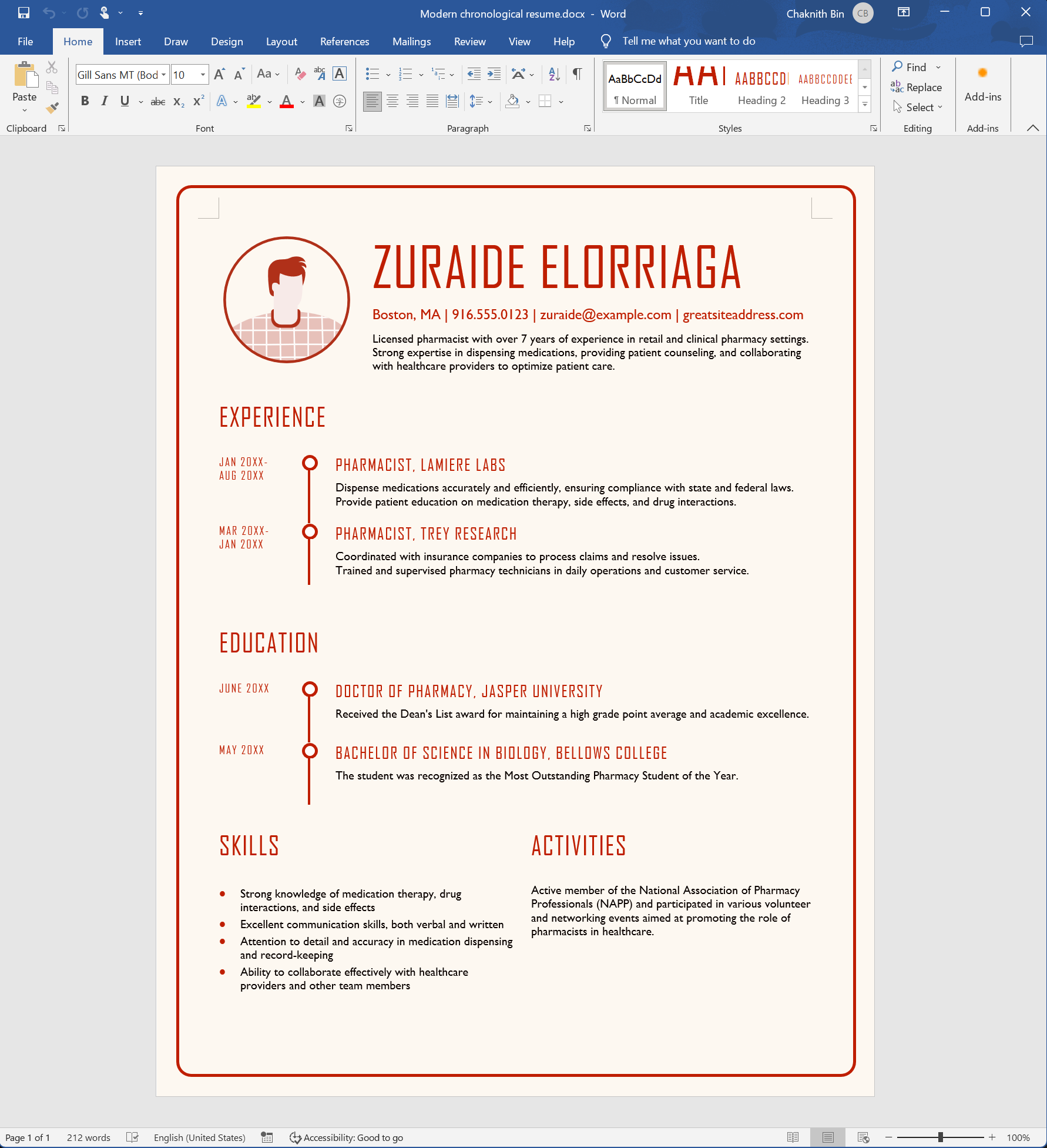
Microsoft WordファイルをPDF形式に変換するプロセスは簡単です。 まず、DocxToPdfRendererクラスをインスタンス化します。 DOCXファイルのファイルパスを提供することによって、DocxToPdfRendererオブジェクトのRenderDocxAsPdfメソッドを利用します。このメソッドはPdfDocumentオブジェクトを返し、PDFをさらにカスタマイズできるようにします。 モダンクロノロジカル履歴書DOCX例ファイル をダウンロードできます。
Microsoft Wordプレビュー
class="content-img-align-center">
style="width=50%">
コードサンプル
RenderDocxAsPdfメソッドは、DOCXデータをバイトやストリームとして受け取ることもできます。
:path=/static-assets/pdf/content-code-examples/how-to/docx-to-pdf-from-file.cs
using IronPdf;

// Instantiate Renderer
DocxToPdfRenderer renderer = new DocxToPdfRenderer();

// Render from DOCX file
PdfDocument pdf = renderer.RenderDocxAsPdf("Modern-chronological-resume.docx");

// Save the PDF
pdf.SaveAs("pdfFromDocx.pdf");
Imports IronPdf
' Instantiate Renderer
Private renderer As New DocxToPdfRenderer()
' Render from DOCX file
Private pdf As PdfDocument = renderer.RenderDocxAsPdf("Modern-chronological-resume.docx")
' Save the PDF
pdf.SaveAs("pdfFromDocx.pdf")
$vbLabelText
$csharpLabel
メールマージの例
Microsoft Wordの"Mailings"タブにあるメールマージを使用すると、各受信者またはデータエントリごとに個別情報が含まれた書類のバッチを作成できます。 これは、招待状、ニュースレター、フォームレターなど、内容の多くが同じであるが、特定の詳細が各受取人のために異なるパーソナライズされた手紙、封筒、ラベル、または電子メールメッセージを生成するためによく使用されます。
モデル
まず、対応するプレースホルダーにメールマージされる情報を保存するモデルを作成しましょう。
:path=/static-assets/pdf/content-code-examples/how-to/docx-to-pdf-mail-merge-model.cs
internal class RecipientsDataModel
{
    public string Date { get; set; }
    public string Location{ get; set; }
    public string Recipients_Name { get; set; }
    public string Contact_Us { get; set; }
}
Friend Class RecipientsDataModel
Public Property [Date]() As String
Public Property Location() As String
Public Property Recipients_Name() As String
Public Property Contact_Us() As String
End Class
$vbLabelText
$csharpLabel
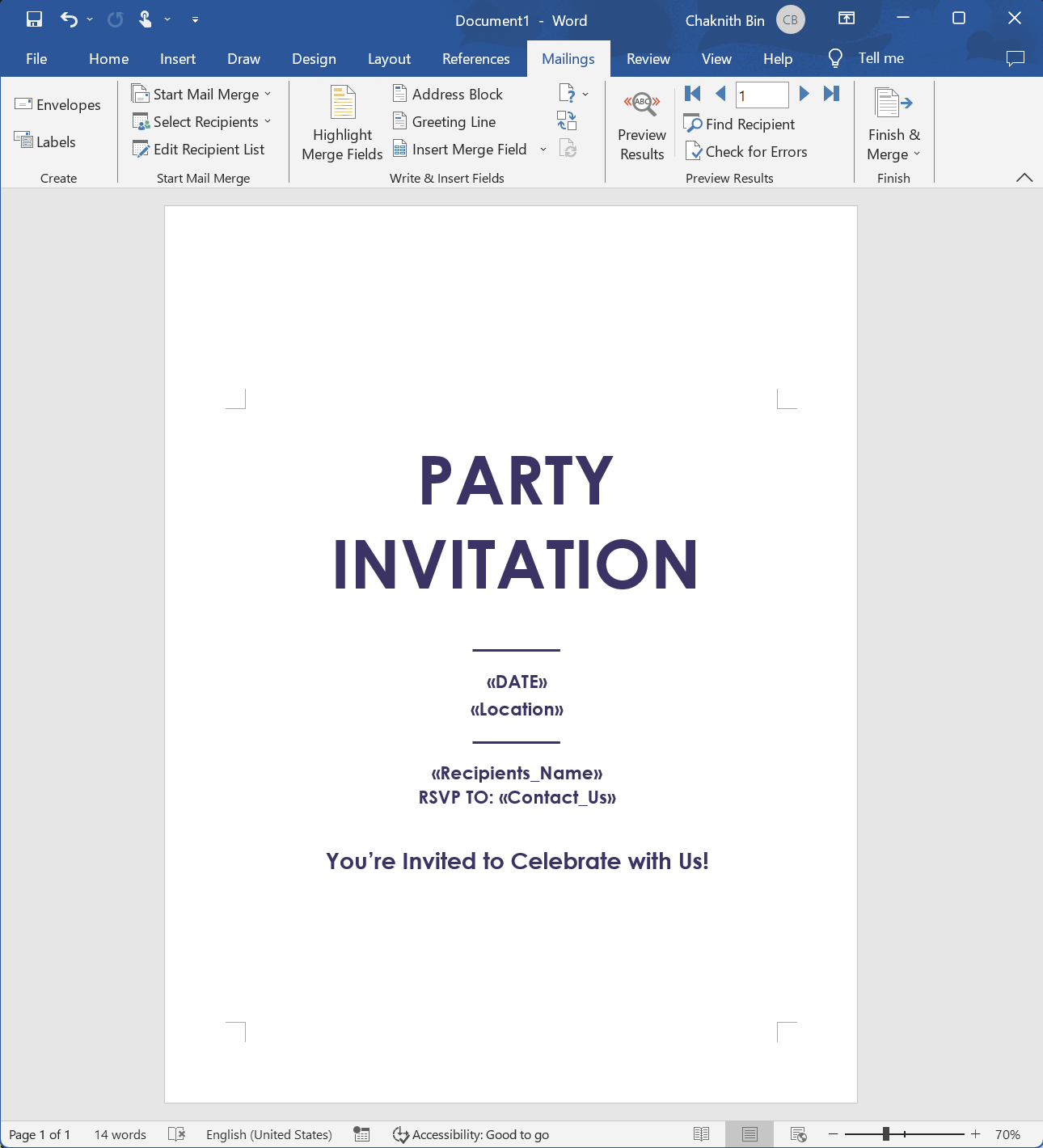
Microsoft Wordが提供するテンプレートを目的に合わせて変更しました。 パーティ招待状DOTX例ファイル をダウンロードしてください。 私たちのユースケースでは、MailMergePrintAllInOnePdfDocumentプロパティをtrueに設定して、PDFを1つのPdfDocumentオブジェクトに結合します。 使用するマージフィールドは日付、場所、受取人の名前、および"お問い合わせ"です。
Microsoft Wordプレビュー
class="content-img-align-center">
style="width=50%">
コードサンプル
:path=/static-assets/pdf/content-code-examples/how-to/docx-to-pdf-mail-merge.cs
using IronPdf;
using System.Collections.Generic;
using System.Linq;

var recipients = new List<RecipientsDataModel>()
    {
        new RecipientsDataModel()
        {
            Date ="Saturday, October 15th, 2023",
            Location="Iron Software Cafe, Chiang Mai",
            Recipients_Name="Olivia Smith",
            Contact_Us = "support@ironsoftware.com"
        },
        new RecipientsDataModel()
        {
            Date ="Saturday, October 15th, 2023",
            Location="Iron Software Cafe, Chiang Mai",
            Recipients_Name="Ethan Davis",
            Contact_Us = "support@ironsoftware.com"
        },
    };

DocxToPdfRenderer docxToPdfRenderer = new DocxToPdfRenderer();

// Apply render options
DocxPdfRenderOptions options = new DocxPdfRenderOptions();

// Configure the output PDF to be combined into a single PDF document
options.MailMergePrintAllInOnePdfDocument = true;

// Convert DOTX to PDF
var pdfs = docxToPdfRenderer.RenderDocxMailMergeAsPdf<RecipientsDataModel>(
     recipients,
     "Party-invitation.dotx",
     options);

pdfs.First().SaveAs("mailMerge.pdf");
Imports IronPdf
Imports System.Collections.Generic
Imports System.Linq
Private recipients = New List(Of RecipientsDataModel)() From {
New RecipientsDataModel() With {
.Date ="Saturday, October 15th, 2023",
.Location="Iron Software Cafe, Chiang Mai",
.Recipients_Name="Olivia Smith",
.Contact_Us = "support@ironsoftware.com"
},
New RecipientsDataModel() With {
.Date ="Saturday, October 15th, 2023",
.Location="Iron Software Cafe, Chiang Mai",
.Recipients_Name="Ethan Davis",
.Contact_Us = "support@ironsoftware.com"
}
}
Private docxToPdfRenderer As New DocxToPdfRenderer()
' Apply render options
Private options As New DocxPdfRenderOptions()
' Configure the output PDF to be combined into a single PDF document
options.MailMergePrintAllInOnePdfDocument = True
' Convert DOTX to PDF
Dim pdfs = docxToPdfRenderer.RenderDocxMailMergeAsPdf(Of RecipientsDataModel)(recipients, "Party-invitation.dotx", options)
pdfs.First().SaveAs("mailMerge.pdf")
$vbLabelText
$csharpLabel
出力PDF
PDFドキュメントが作成された後、さらに変更を加える柔軟性があります。 These include exporting it as PDF/A or PDF/UA , as well as adding a digital certificate . You can also manipulate individual pages by merging or splitting PDFs , rotating them, and you have the option to apply annotations and bookmarks .
これらの機能に加えて、IronPDFは他のドキュメント形式への変換もサポートします。 IronPDFが提供する他の機能に関する追加情報は、このチュートリアル を参照してください。
よくある質問
C#でDOCXファイルをPDFに変換するには、IronPDFライブラリの`DocxToPdfRenderer`クラスを使用できます。このクラスをインスタンス化し、`RenderDocxAsPdf`メソッドを呼び出して、DOCXファイルを渡してPDFを生成します。
DOCXファイルをPDF形式に変換することで、お使いのドキュメントが異なるプラットフォームやデバイス間でフォーマットを維持し、セキュリティを強化し、普遍的な互換性のある形式を提供します。
はい、IronPDFはメール マージ機能をサポートしており、DOCXテンプレートにデータをマージして個別化したドキュメントを作成し、それをPDFに変換することができます。
IronPDFはDOCXをPDFに変換するための効率的なプロセスを提供し、メール マージ機能などの高度な機能をサポートし、デジタル証明書や注釈の追加などPDFのさらなるカスタマイズを可能にします。
はい、IronPDFの`RenderDocxAsPdf`メソッドはストリームやバイト配列からのDOCXデータを処理でき、異なる入力ソースに対応するよう柔軟です。
IronPDFを使用してDOCXからPDFに変換した後、PDF/AやPDF/UAの標準にエクスポートしたり、注釈、ブックマーク、デジタル署名を追加したりしてPDFをカスタマイズできます。
PDF変換の練習のために、『モダンクロノロジカルレジュメ』などのサンプルDOCXファイルをIronPDFのウェブサイトに提供されているリンクからダウンロードできます。
IronPDFはNuGetパッケージマネージャからダウンロード可能で、.NETプロジェクトに簡単に統合してDOCXからPDFへの変換ができます。
ソフトウェアエンジニア
ChaknithはIronXLとIronBarcodeに取り組んでいます。彼はC#と.NETの深い専門知識を持ち、ソフトウェアの改善や顧客サポートに貢献しています。ユーザーとの対話から得られる洞察が、より良い製品、ドキュメント、および全体的な経験に寄与しています。
A PHP Error was encountered
Severity: Warning
Message: Illegal string offset 'name'
Filename: sections/author_component.php
Line Number: 70
Backtrace:
File: /var/www/ironpdf.com/application/views/main/sections/author_component.php
File: /var/www/ironpdf.com/application/libraries/Render.php
File: /var/www/ironpdf.com/application/views/products/sections/three_column_docs_page_structure.php
File: /var/www/ironpdf.com/application/libraries/Render.php
File: /var/www/ironpdf.com/application/views/products/how-to/index.php
File: /var/www/ironpdf.com/application/libraries/Render.php
File: /var/www/ironpdf.com/application/libraries/Render.php
File: /var/www/ironpdf.com/application/controllers/Products/Howto.php
File: /var/www/ironpdf.com/index.php
è
è">
A PHP Error was encountered
Severity: Warning
Message: Illegal string offset 'title'
Filename: sections/author_component.php
Line Number: 84
Backtrace:
File: /var/www/ironpdf.com/application/views/main/sections/author_component.php
File: /var/www/ironpdf.com/application/libraries/Render.php
File: /var/www/ironpdf.com/application/views/products/sections/three_column_docs_page_structure.php
File: /var/www/ironpdf.com/application/libraries/Render.php
File: /var/www/ironpdf.com/application/views/products/how-to/index.php
File: /var/www/ironpdf.com/application/libraries/Render.php
File: /var/www/ironpdf.com/application/libraries/Render.php
File: /var/www/ironpdf.com/application/controllers/Products/Howto.php
File: /var/www/ironpdf.com/index.php
è
A PHP Error was encountered
Severity: Warning
Message: Illegal string offset 'comment'
Filename: sections/author_component.php
Line Number: 85
Backtrace:
File: /var/www/ironpdf.com/application/views/main/sections/author_component.php
File: /var/www/ironpdf.com/application/libraries/Render.php
File: /var/www/ironpdf.com/application/views/products/sections/three_column_docs_page_structure.php
File: /var/www/ironpdf.com/application/libraries/Render.php
File: /var/www/ironpdf.com/application/views/products/how-to/index.php
File: /var/www/ironpdf.com/application/libraries/Render.php
File: /var/www/ironpdf.com/application/libraries/Render.php
File: /var/www/ironpdf.com/application/controllers/Products/Howto.php
File: /var/www/ironpdf.com/index.php
è
準備はいいですか?
| バージョン: 2025.11 ただ今リリースされました
試用版の IronPDF を無料でお試しください
5分でセットアップ完了
Install with NuGet
バージョン: 2025.11
nuget.org/packages/IronPdf/
ソリューションエクスプローラーで参照を右クリックし、NuGetパッケージを管理を選択 ブラウズを選択し、"IronPdf"を検索 パッケージを選択してインストール
DLL をダウンロード
バージョン: 2025.11
IronPDFを~/Libsなどの場所に解凍し、ソリューションディレクトリ内に配置する Visual Studioソリューションエクスプローラーで参照を右クリックし、"IronPdf.dll"をブラウズして選択
15
1000
1
無料で始める
無料トライアルを開始 NuGetダウンロード js-modal-open
あなたの無料30日間の試用キー をすぐに入手。
Thank you.


 Get started making PDFs with NuGet now: